Saturday
5 SepYour Rankings Stayed Stable but Traffic Fell: Where Should You Look First?
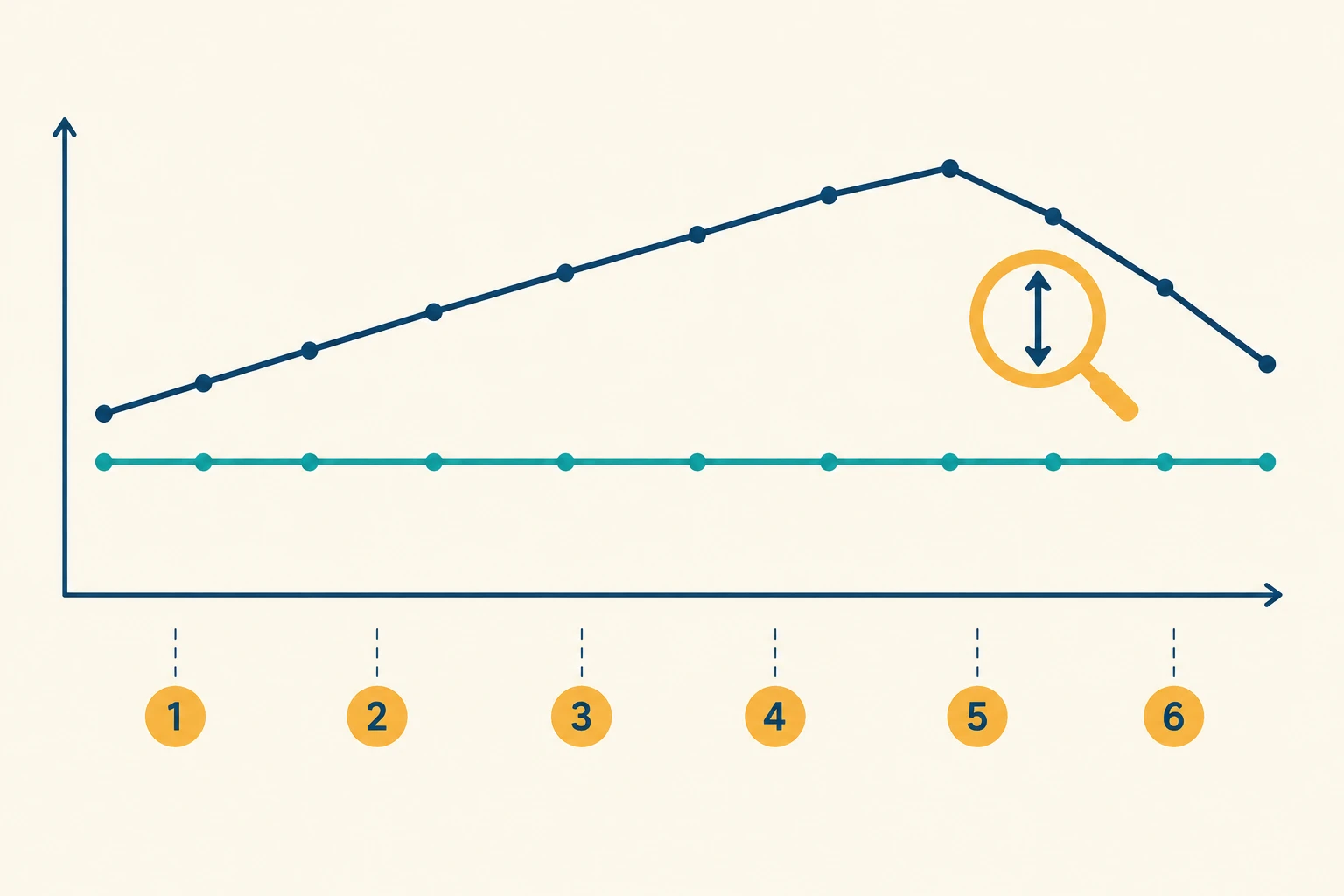
If your rankings held steady but traffic dropped, the first place to look is the search results page.
Pull up your keyword in an incognito window and see what has changed around your listing. If Google is answering the query directly through an AI Overview or a featured snippet, readers are getting what they need before they click anything.
It might be surprising, but your traffic can fall because Google is answering the query well. That’s only one possible explanation, though. There are several other reasons your traffic can drop even when your rankings look unchanged. We’ll look at each one and what you can do about it.
Check if AI Overviews Are Eating Your Clicks
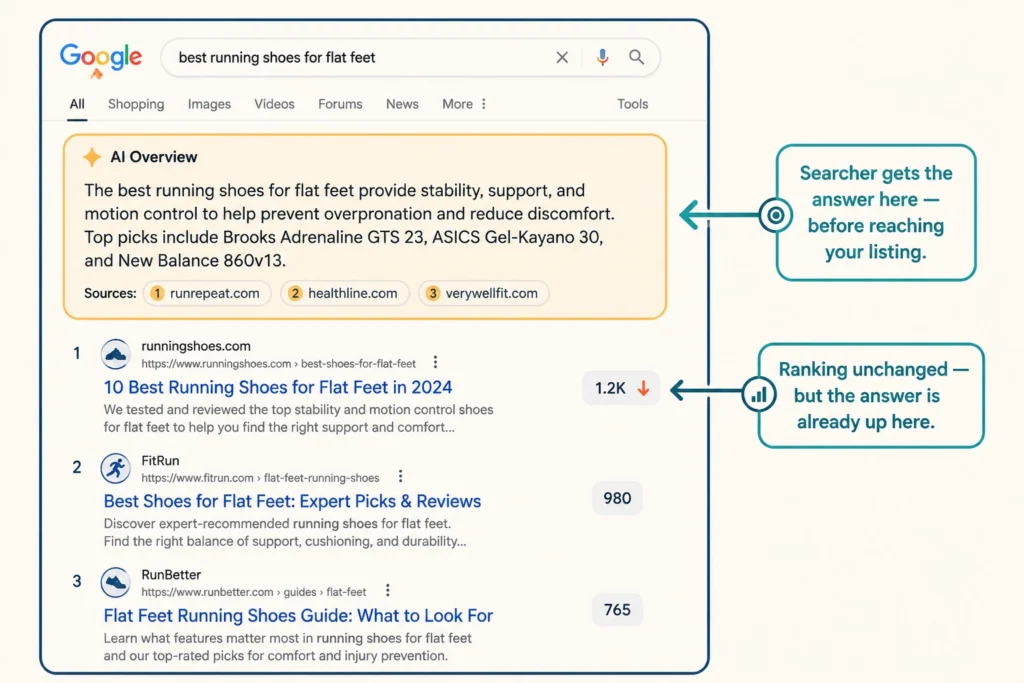
AI Overviews are the AI-generated answer boxes Google now shows above organic results for many searches. They pull information from multiple sources and answer the query directly on the page. That means readers can get what they want without ever visiting your site. The result can be fewer clicks even when your page hasn’t moved down the rankings.
To check whether that’s what’s happening, open Google Search Console and go to Performance > Search results. Compare the period when your traffic was normal with the period when it started falling. Look through the queries that lost clicks and check whether their average positions stayed roughly the same.
Then search a few of those queries and see whether an AI Overview now appears above the organic results. If it does, and impressions stayed steady while clicks fell, the AI Overview is a likely culprit.
Featured snippets do the same thing, answering the query directly above your listing. So can other SERP features that give searchers an answer before they reach the organic results. The goal is to compare what Google shows now with what searchers saw before.
Check Your Search Console Data Before Blaming Your SEO
It might look like your organic traffic has dropped, but the numbers can be misleading if you’re not comparing the right data. Before treating the decline as a loss of visitors, check what you’re comparing and where the drop is coming from.
Google Search Console gives you a few simple ways to do that:
- Date Range: Compare the affected period with the same period last year, not just the previous few weeks. Seasonal changes in search demand can make a normal fluctuation look like a sudden decline.
- Property: A property is the website or part of a website you track in Search Console. You may have more than one without realising it. For example, an old and new version of your site might be tracked separately, with one losing traffic while the other picks it up.
- Page-Level Data: Filter the report by your main pages and see whether the decline is spread across the site or concentrated on a few URLs. A site-wide drop points you in a very different direction from one affecting only one or two pages.
If the data still shows a clear drop after these checks, you can be more confident that the traffic loss is real rather than a reporting quirk. From there, you can start looking for what changed on the site or in the search results.
Search Demand for Your Keyword May Have Dropped
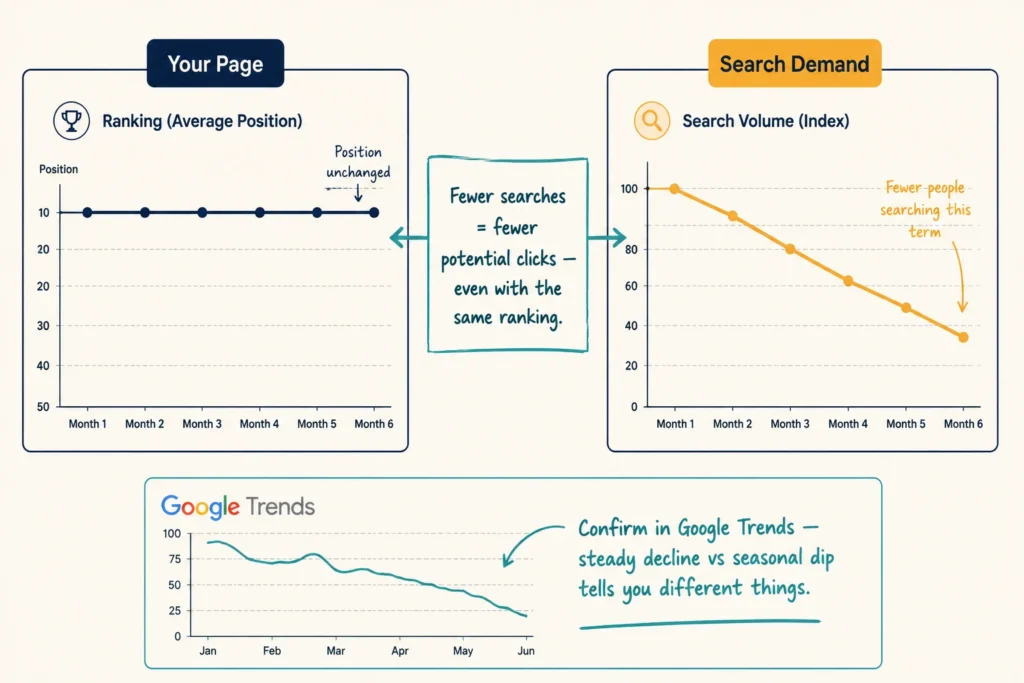
Once you’ve confirmed the drop is real, ask yourself: are people still searching for these keywords as often as they used to?
Search demand can fall even when your page hasn’t changed, and your rankings haven’t moved. When fewer people search for a term, there are simply fewer potential clicks to earn. This is especially common with searches tied to specific events, products, or times of year. Like a term such as “gift ideas for dad” naturally sees less interest after Father’s Day, and no amount of on-page work brings that demand back.
That drop in demand is easy to confirm. Open Google Search Console and pull a few important queries where clicks have fallen despite similar rankings. Then check those terms in Google Trends. A steady downward trend over several months suggests that demand is declining, while a sharp dip around a particular period may point to seasonality.
Keyword Cannibalisation Could Be Splitting Your Clicks
Keyword cannibalisation happens when two or more pages on your site target the same search term.
Google has to decide which one to show, so your pages can end up competing with each other instead of one becoming the clear result. Your combined traffic might even stay similar, but neither page performs as well as a single strong page could.
We’ve seen this happen plenty of times on sites that have been publishing content for years. For example, last year, we audited a site where an older blog post and a newer service page were both targeting the same term. It wasn’t until we ran the audit that anyone noticed.
Fortunately, you can check for cannibalisation by searching your target keyword on Google and adding site:yourdomain.com to the search. If two or more of your organic listings appear for the same query, look at what each page is trying to rank for. Two or more pages targeting the same search intent could point to a cannibalisation problem.
The fix is usually to consolidate the competing pages. To do that: choose the stronger URL, move any useful information from the other page across, and redirect the other one. That gives Google one clear page to rank instead of making it choose between two similar ones.
Redirects or Indexing Errors Could Be Blocking Clicks
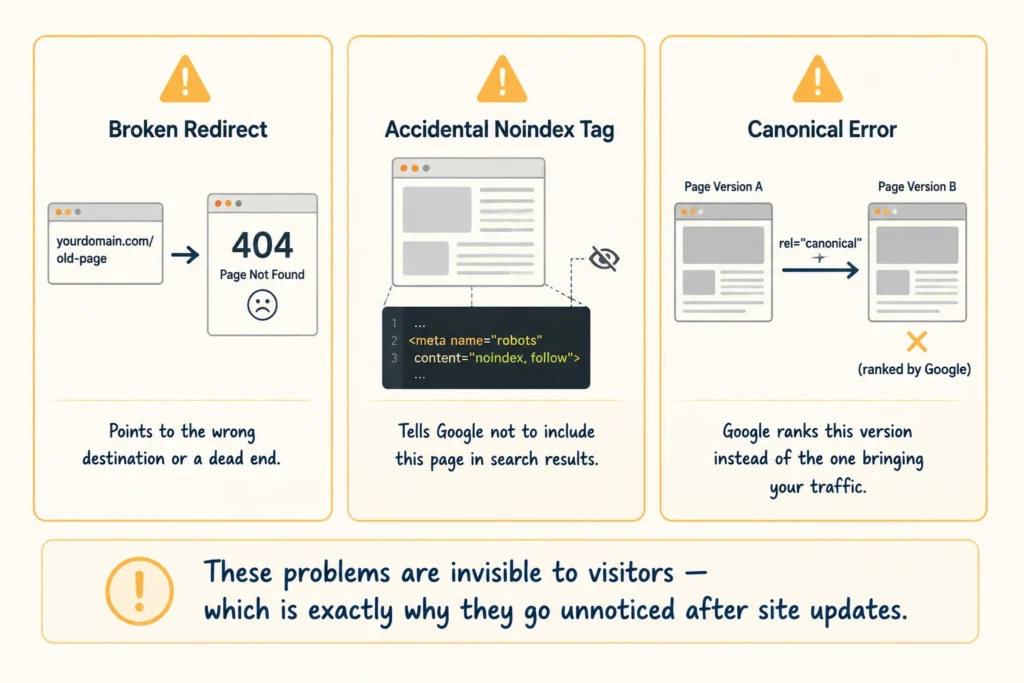
Your page can look completely normal to you and still have a technical problem behind the scenes. It may load perfectly when you visit it, while a redirect, noindex tag, or canonical setting tells Google to treat the URL differently.
That’s why it’s worth checking for issues like these:
- Broken Redirects: Check recently changed URLs for redirects that point to the wrong destination or end at a 404 page. A redirect problem can prevent users from reaching the page they expect and may eventually affect how Google treats the URL.
- Accidental Noindex Tags: A common reason a page suddenly disappears from search is an accidental noindex tag. This directive tells Google not to include the page in its search results. It can be left behind after a site update without affecting how the page looks to visitors.
- Canonical Errors: A canonical tag tells Google which version of a page you want it to treat as the main one. If it points to the wrong URL, Google might rank that version instead of the page that’s been bringing you traffic. Your original page can still work normally for visitors, so the problem can go unnoticed.
These checks are especially useful after site updates, migrations, or URL changes, when technical settings can change without anyone noticing. If you find nothing wrong here, you can move on knowing a basic indexing or URL issue is less likely to explain the traffic drop.
An Algorithm Update Could Be Lowering Your Click-Through Rates
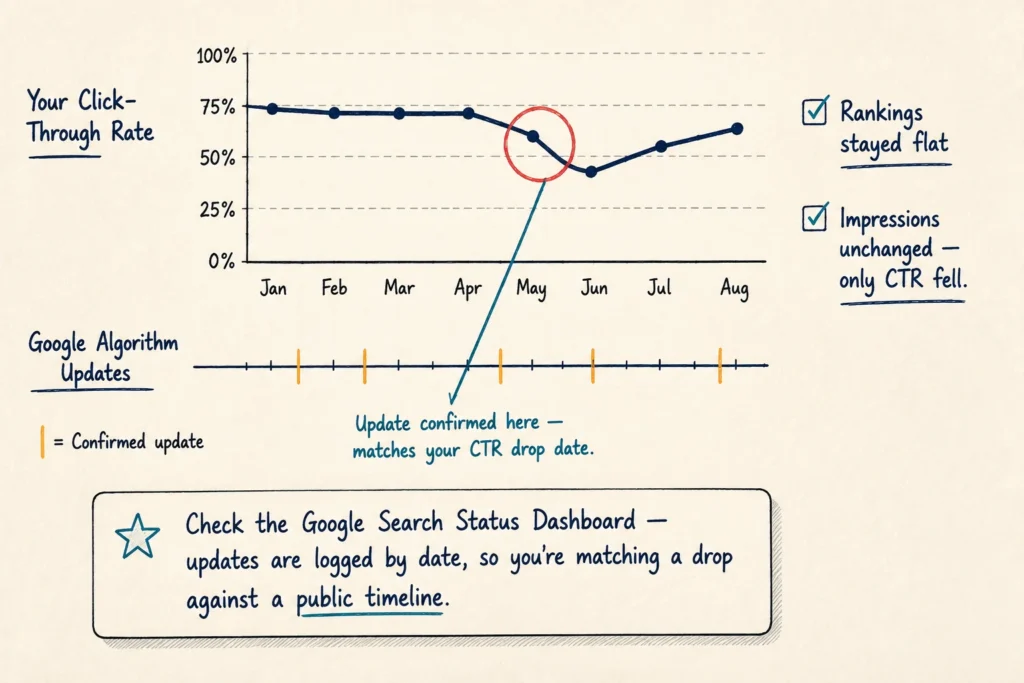
Rankings tell you where your page sits, but not what your listing actually looks like to searchers. Google can change how your listing appears, including the title, description, or other SERP elements, while your position stays the same.
The clearest way to check this is against Google’s own record of changes. Open the Google Search Status Dashboard and look for confirmed algorithm updates around the date your click-through rate started falling in Search Console. Google logs these updates by date, so you’re matching your drop against a public timeline rather than guessing.
If a confirmed update lines up with your CTR drop while your rankings and impressions stay steady, the update is worth investigating. Industry coverage from sites like Search Engine Land can help you understand what changed without having to work it out from scratch.
Don’t Stop at the Rankings
A ranking report tells you where your page sits, but it can’t tell you why your numbers changed.
If your visits have fallen while your rankings haven’t, start with the six possibilities covered in this article. Work through them in order, using Search Console to compare your clicks, impressions, and queries before assuming you’ve got a ranking problem.
Still can’t explain the drop? H-Mag can help you dig deeper. Get in touch with the team for a closer look at what’s happening across your search visibility and traffic.
